> For the complete documentation index, see [llms.txt](https://doc.cards-microlearning.com/llms.txt). Markdown versions of documentation pages are available by appending `.md` to page URLs; this page is available as [Markdown](https://doc.cards-microlearning.com/english/apps-and-integrations/dendreo.md).
# Dendreo
The integration between Cards and Dendreo allows you to:
* automatically import your participants into Cards
* link your Cards training courses to your e-learning courses in Dendreo
* automatically register your learners for training courses in Cards
* offer your participants one-click login
* sync your participants' progress back to Dendreo.
{% hint style="info" %}
[Contact us](https://www.cards-microlearning.com/contact) to activate the Dendreo integration in your Cards workspace.
{% endhint %}
### Configuration in Cards
Once we have enabled the integration in your workspace, you will be able to access the configuration page via the "Apps and integrations" menu, followed by "Dendreo".
Configuring the Dendreo integration
On this page, you will need to enter the signature key provided by Dendreo. This key secures the data exchange between the two platforms.
You can find this key in Dendreo under Configuration > LMS E-Learning > Universal LMS Connector.
### Configuration in Dendreo
To enable synchronization between Cards and Dendreo, several pieces of information must be entered in Dendreo. This configuration is performed under Configuration > LMS E-Learning > Universal LMS Connector.
#### Connection settings for your instance
The first step allows you to configure the connection. You can enter:
* the LMS name: Cards
* your instance name (Tenant ID): the ID of your Cards workspace.
And this is where you will find the signature key (which you enter into Cards).
#### API access configuration
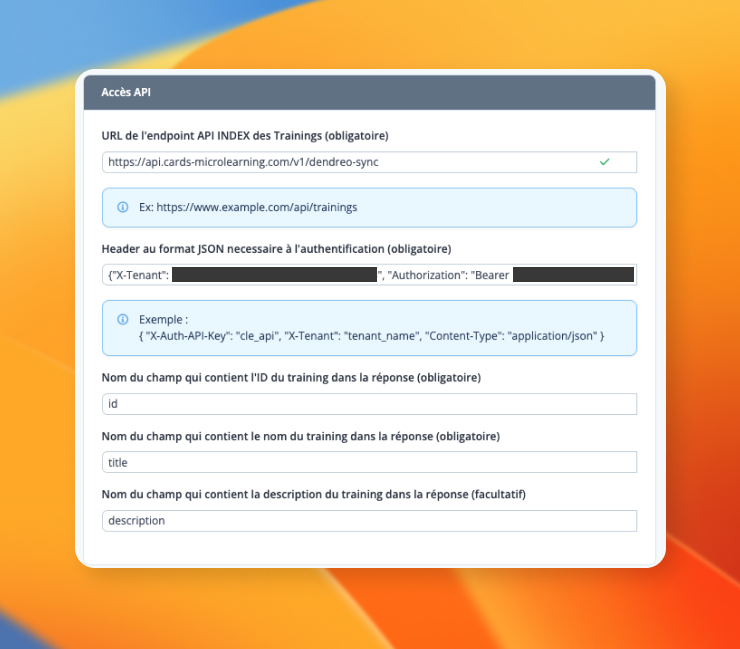
This configuration allows you to locate your Cards training courses and routines within Dendreo when creating an e-learning module, thereby enabling you to link the two.
The first field is the API endpoint URL; it is always the same: `https://api.cards-microlearning.com/v1/dendreo-sync`
The second field, "Header in JSON format," contains the keys required to successfully connect to the Cards API. The format is as follows:
```
{"X-Tenant": "YOUR-CARDS-SPACE-ID", "Authorization": "Bearer API-KEY", "Content-Type": "application/x-www-form-urlencoded"}
```
You need to replace the following values:
* YOUR-CARDS-SPACE-ID: enter your Cards workspace ID (displayed on the Dendreo integration configuration page within Cards)
* API-KEY: a Cards API key that you must create (see our API documentation), which must have access scope for the training course list.
Finally, the last 3 fields to fill in:
* ID field name: `id`
* Name field name: `title`
* Description field name: `description`
#### Webhooks configuration
Webhooks allow Cards to know when to create a user and enroll them in a training course. The URL to enter is the same for all three fields: `https://api.cards-microlearning.com/dendreo/webhook`
{% hint style="info" %}
The third field for Sessions is not currently used, because Cards has no concept of a "Session".
{% endhint %}
#### Administrator access URLs
You can fill in these two fields to create quick-access links within your Dendreo administration area (for example, on a participant's record to access their Cards profile).
The URLs to enter are:
* User record: `https://app.cards-microlearning.com/manage/users/[user_id]`
* Training record: `https://app.cards-microlearning.com/manage/trainings/[training_id]/edit`
#### Participant Access to the LMS
This configuration links the Dendreo Participant Portal with Cards. Your participants will then be able to access Cards directly from their Dendreo portal and be automatically logged in to complete their training.
The first field establishes the automatic link to the training course (or the routine). You can enter the following value: `https://app.cards-microlearning.com/enrolment/[enrolment_id]`.
The second field enables the one-click login between Dendreo and Cards. You need to enter: `https://app.cards-microlearning.com/login-dendreo/ID-ESPACE-CARDS`, replacing "ID-ESPACE-CARDS" with your specific workspace ID. The full URL is available on the Dendreo integration configuration page within Cards.
### How synchronization works
#### Create a Dendreo training course linked to a Cards training course
When creating a training course in your Dendreo catalog, you can set the "organization mode" to "e-learning." An "LMS" option block then becomes available, allowing you to select a Cards course or routine:
In this block, you can fill in only the first field by finding the training course you wish to associate.
{% hint style="info" %}
The list displays the training programs and routines. Routines are marked with "\[Routine]" before their title to make them easier to distinguish.
{% endhint %}
#### User synchronization
User synchronization occurs when a participant is linked to a training session (ADF) in Dendreo (rather than when the participant is created).
When a participant is enrolled in a training session, a Cards account is created for them (if one does not already exist), and access to the training is granted (or the routine). If their account already exists in Cards, it is linked to the Dendreo participant record.
On their Cards user profile, you can view "direct" training access—meaning access is granted not via a group or routine, but through direct management (in this case, via Dendreo synchronization).\
In the Cards user list, you can enable the "Dendreo" tag display to see which accounts were created via Dendreo synchronization:
#### One-click login from the Dendreo participant area
Thanks to the one-click login setup, participants can access Cards from their Dendreo portal without needing to log in again.
The Cards modules are listed in their portal, and a button allows access to them:
#### Progress sync to Dendreo
Participant progress data is reported automatically. You can therefore track the progress and scores achieved by each participant directly within Dendreo.
This information is available, in particular, in the "Reporting" section of Dendreo.